
Photoshop
6 Bible
"A
Must Have Encyclopedia Of Photoshop 6!"




Title:
Photoshop 6 for Windows Bible
Author: Deke McClelland http://www.dekemc.com
Publisher: IDG Books http://www.idgbooks.com
Publication Date: November 2000
Pages: 936 pages with CD
ISBN: 0-7645-3491-2
Price: $39.99
Photoshop
6 for Windows Bible, by Deke McClelland,
is a totally revised update, providing everything a Windows user needs
to know to learn and become an expert with the latest release of
Adobe Photoshop 6. Author and premier Photoshop expert Deke McClelland
delivers a comprehensive, informative, and entertaining coverage of Photoshop,
complete with all the insider secrets and tips you need for state-of-the-art
graphic design. The book
includes a CD-ROM packed with utilities, plug-ins, sample images, an artist
gallery, video interviews, and more. For users of an Apple Macintosh or
iMac, there is a Macworld Photoshop 6 Bible.


Features I like include:
- Well written by a writer with a sense of humor;
- Tips that provide you with extra knowledge;
- Notes that provide additional or critical information and technical data on the current topic;
- A Photoshop 6 icon that highlights an option, command, or other feature that is new to this version;
- Cross-reference icons that indicate places where you can find more information on a a particular topic;
- A Caution Icon that warns you of a potential problem or pitfall.
- A complete version of the book in PDF format on the CD-ROM.
- The CD-ROM also contains four bonus chapters, third-party plug-in demos, 48 high-resolution stock photos, and a large, full-color gallery of artwork from 16 Photoshop artists.

Photoshop 6 for Windows Bible is organized into five Parts, plus an Appendix.
Chapters 1 through 3 give you an overview of Photoshop.
- Chapter 1 What's Up with Photoshop 6: provides an introduction to Photoshop; explains the difference between painting and drawing programs; discusses how Photoshop fits into the bigger design scheme; covers the many uses of Photoshop; and highlights the new features in Photoshop 6.
- Chapter 2 Inside Photoshopt: looks inside Photoshop at the interface, tools, options bar, and zooming features; scrolling from the keyboard; using the Navigator palette; and Photoshop's preference settings.
- Chapter 3 Image Fundamentals: scaling an image for the printer and for the screen; opening and saving images; exploring JPEG, GIF, PDF, and other file formats; rendering object-oriented EPS images; saving TIFF files with layers; annotating images with text and audio comments; changing the number of pixels in an image; and using the updated Crop tool and Crop command.
Chapters 4 through 7 give you a solid foundation in the basics of painting and retouching.
- Chapter 4 Defining Colors: using the color controls in the toolbox; selecting and defining colors in the Color Picker dialog box; RGB, HSB, CMYK, and Lab Color Models; creating grayscale and back-and-white images; Trumatch and Pantone color standards; Color palette, Color Sampler tool, and Eyedropper; color channels; improving the appearance of poorly scanned images; and editing channels to achieve special effects.
- Chapter 5 Painting and Editing: exploring Photoshop's paint and edit tools; painting straight and perpendicular lines; smudging colors; adjusting saturation and contrast with the Sponge tool; selecting brushes and tool options; saving and editing custom brush sets in the Preset Manager; creating lines that fade away or taper to a point; working with pressure-sensitive drawing tablets; and selecting brush modes from the keyboard.
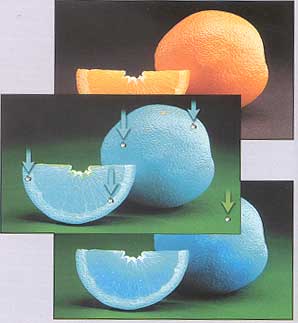
- Chapter 6 Filling and Stroking: applying color with the Paint Bucket tool and Fill command; filling a selection with custom patterns; having fun with the Backspace key; creating an antique framing effect with the Paint Bucket; using the new gradient features; designing your own multicolor gradation; using the Gradient tool with the Dissolve brush mode; creating outlines and borders; and attaching an arrowhead to any stroke. Note: Orange image created using the Paint Bucket to colorize two oranges with bright blue.
- Chapter 7 Retouching, Repeating, and Restoring: an overview of Photoshop's photo restoration tools; touching up dust, hair, and other scanning artifacts; restoring a damaged photograph; eliminating background elements from an image; painting a repeating pattern with the Pattern Stamp tool; creating seamless patterns and textures; using the Undo and Revert commands; traveling through time with the History palette; painting away mistakes with the Erasers, History brush, and Art History brush; and creating and merging alternate time lines.
Chapters 8 through 11 investigate how you can use selections, masks, and filters.
- Chapter 8 Selections and Paths: special tricks that work with only the marquee tools; using the Polygonal and Magnetic Lasso tools; working with the Magic Wand; manual and automatic methods for editing selection outlines; the Feather command; moving and cloning selections and selection outlines; the Pen tools; transforming selection outlines and paths independently of the image; painting along an open path; and creating, saving, and exporting clipping paths.
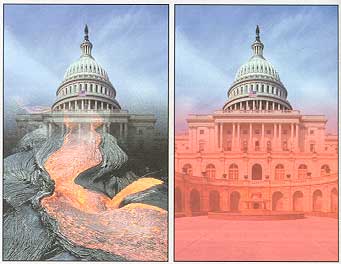
- Chapter 9 Masks and Extractions: masking; painting inside a selection outline; using the quick mask mode to modify selection outlines; drawing gradient selections in the quick mask mode; creating translucent gradient arrows; using the Extract command to clip away the image background; selecting images with the Color Range command; saving a selection outline to a mask channel; converting channels into selections; creating a highly accurate mask based on the image itself; and selecting hair and other precarious details. Note: Lava flow image to the left was created using black-to-white gradation and quick mask mode.
- Chapter 10 Corrective Filtering: corrective, destructive, and effects filters; mixing a filtered image with the original; fixing the focus of an image with Unsharp Mask; enhancing a grainy photograph using a custom edge mask; highlighting edges with the High Pass filer; creating glowing images with Gaussian Blur; feathering a selection using maximum and Gaussian Blur; filters in the Noise submenu; sharpening images with lots of compression artifacts; and reducing moire patterns in scanned images.
- Chapter 11 Full-Court Filtering: special effects filters; Pixelate filters; putting the Mezzotint filter to good use; applying the edge-enhancement filters; creating metallic effects; distortion filters; tugging at images with the Liquefy filter; designing specialized gradations; transforming images in 3D space; using Clouds filter; and the complete inner workings of Lighting Effects.
Chapters 12 through 15 introduce you to the world of layers, objects, and text.
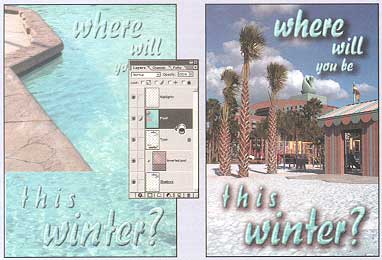
- Chapter 12 Working with Layers: creating and cloning layers; floating the background layer; bring layers forward and backward; using the Matting commands; merging layers; converting layers to selections; making drop shadows, halos, and spotlights; combining layers using links and sets; moving, scaling, and rotating layers; aligning layers to guides and each other; using the measure tool; selecting the Lock Transparency option; working with layer masks; and creating clipping groups. Note: Image to the left was created using a clipping path to fill some characters of type with a water pattern.
- Chapter 13 The Wonders of Blend Modes: modifying the Opacity value; using blend modes; selecting blend modes from the keyboard; applying opposite blend modes; sandwiching a heavily filtered image between two unfiltered originals; Advanced Blending options; fading pixels according to brightness values using the Layer Style dialog box; channel operations; mixing same-sized images with the Apply Image command; using the Add and Subtract blend modes; and modifying selection outlines and masks using the Calculations command.
- Chapter 14 Shapes and Styles: drawing object-oriented shapes; setting polygon, line, and custom shape options; combining shapes into compound paths; defining custom shapes; filling shapes with gradients, patterns, and imagery; creating and modifying automatic layer effects; working inside the Layer Style dialog box; duplicating effects; and saving effects and blending options as styles.
- Chapter 15 Fully Editable Text: creating vector type instead of bitmap type; rasterizing text; adding type directly to an image; creating text inside a bounding box; formatting text using the Character and Paragraph palettes; editing existing text; creating vertical columns of type; converting text to a shape or work path; warping text layers; selecting an image using a type mask; and applying layer effects to type.
Chapters 16 through 19 cover using color for print and screen.
- Chapter 16 Essential Color Management: setting up your monitor with the Gamma Wizard; selecting an RGB working space; embedding a color profile in a saved image; converting colors from one working space to another; using the Color Settings command; assigning profiles to untagged images; establishing color management policies; reacting to and disabling alert messages; changing the Intent setting; setting up a custom CMYK space; and transferring CMYK settings from Photoshop 5.
- Chapter 17 Mapping and Adjusting Colors: Mapping colors with Invert, Equalize, Threshold, and Posterize; converting a selected area to grayscale; rotating colors around the color wheel using Hue/Saturation; raising and lowering saturation levels; colorizing grayscale images; correcting colors with Replace Color, Selective Color, and variations; increasing the saturation of a heavily compressed image; boosting brightness and contrast levels; editing specific color values with curves; applying gradient maps; and correcting multiple layers at once with adjustment layers.
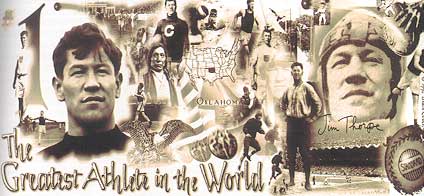
- Chapter 18 Printing Images: terminology; how to print grayscale and color composites; setting up and previewing your print job; the theory behind halftone screens; how to assign transfer functions to distribute brightness values; color-separation process; color trapping; converting a grayscale image into a duotone, tritone, or quadtone; adding spot-color highlights to a CMYK image; and printing contact sheets, picture packages, and Web gallery pages. Note: The image to the left was created by converting a grayscale image to a quadtone using the colors navy blue, rose teal, and dull orange.
- Chapter 19 Creating Graphics for the Web: differences between Mac and PC monitors; shrinking file sizes without sacrificing quality; saving JPEG images; saving indexed images in the GIF format; comparing GIF and JPEG side-by-side; optimizing images using Save for Web; assessing the PNG format; creating image slices; and producing image maps, rollovers, and animations in ImageReady.
Bonus Chapters and Extras are included on the CD-ROM.
Chapter A: Constructing Homemake Effects;
Chapter B: Actions and Other Automations;
Chapter C: Macintosh Shortcuts;
Chapter D: Windows Shortcuts.


For running Photoshop 6 on a Windows system:
- Pentium PC running Windows 9x/NT/2000.
| Educational | Books | Utilities | Web Tools | Legal | Articles
|
