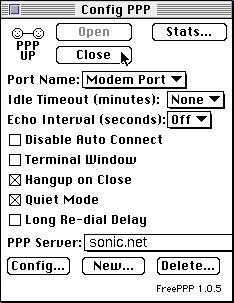
FreePPP 1.0.5 for Macintosh
FreePPP 1.0.5 is a PPP (Point to Point Protocol) program that enables Macintoshes to make a modem connection to Sonic.net. Adding PPP software such as this is necessary for System 7.1 to 7.5.3 (along with MacTCP) to make an internet connection.
This document shows reccomended settings for a Macintosh running a System version prior to version 7.6 using FreePPP 1.0.5.
-
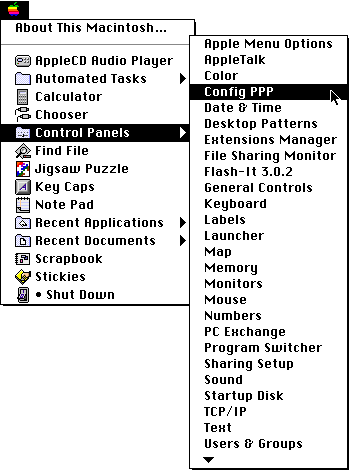
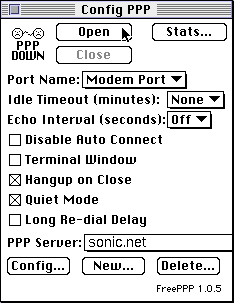
To access your FreePPP settings, open the Apple menu, select Control Panels, and click on "Config PPP."
-
To create a new connection, select the button labeled "new."
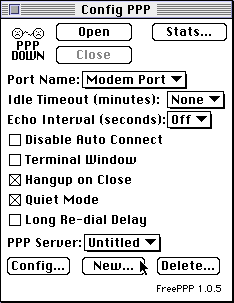
You will be prompted to provide a name for the connection. Type "Sonic.net" and click "OK."
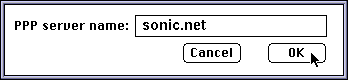
-
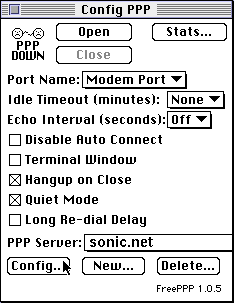
Once your connection is created, it will be displayed in the "PPP Server" pull-down menu. Make sure that "Sonic.net" is selected and click the button labeled "Config..."
-
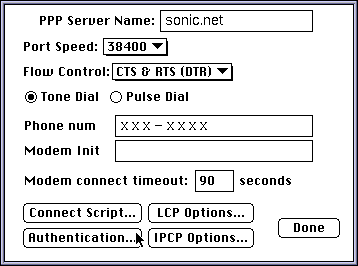
The Congfiguration window contains all settings directly relating to your
Macintosh establishing a modem connection.
- For "Port Speed," select 38400 if you use a 14.4kbps modem, 57600 if you use a 28.8 or 33.6kbps modem, or 115200 if you use a 56.6kbps modem.
- For "Flow Control" select "CTS & RTS (DTR)"
- Select "Tone Dial" or "Pulse Dial" as appropriate for your phone line. In most cases this is "Tone Dial."
- For "Phone num" enter your local Sonic.net dialup access number. To find access numbers in your area, use the POP Finder tool located at http://www.sonic.net/cgi-bin/pops.pl.
- Leave "Modem Init" empty unless your modem requires a special initialization string to operate.
- "Modem connect timeout" should be set to 90 seconds or longer. This is the amount of time your Macintosh will allow for your connection to be established before it gives up.
Once you have entered the required information, click the button labeled "Authentication..."
-
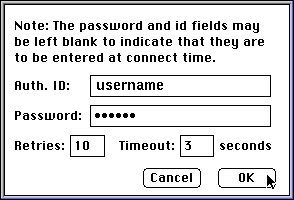
You will be prompted to enter your "Auth ID" and your password. Your Auth ID is your Sonic.net login name. "Retries" should be set to 10, and "Timeout" should be set to 3 seconds. Click "OK."
-
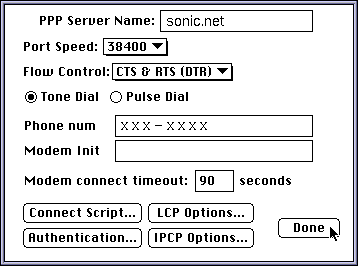
You wil be returned to the configuration window. Click "Done."
-
To connect to the internet, click the button labeled "Open."
-
To disconnect from the internet, click the button labeled "Close."