
Remove Mail from the Mail Server with Outlook Express 5 on Mac OS 9
This tutorial will show you how to set Outlook Express 5 to remove mail from the mail server.
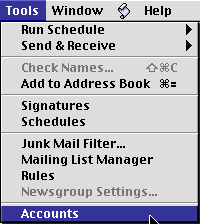
- Click on the "Tools" menu and select "Accounts"
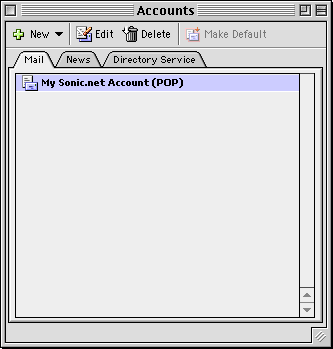
- In the accounts window which appears, select your email account and press the "Edit" account button.
- In the window which appears, click on the tab labeled "Account Options." Press the button labeled "Get all messages left on server," and then
uncheck the box labeled "Leave a copy of each message on the server."
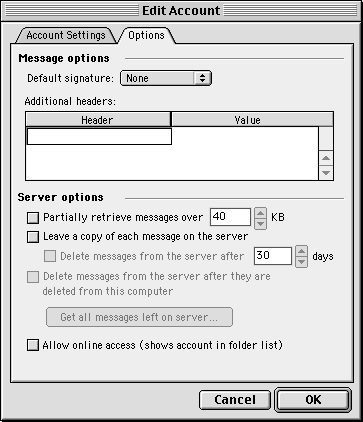
That's it, you're done! Just press "Ok" to exit the account options window. For more information about Outlook Express 5, please see the help documentation found within the program. Back to the Macintosh setup guides.