
Set Up the Remote Access Control Panel for Mac OS 9
This tutorial will show you how to set up the remote access control panel so that your computer will be able to make a dialup connection.
- Click on the Apple menu, select "Control Panels," and then select the "Remote Access" control panel.

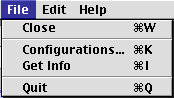
- When the "Remote Access" control panel opens up, click on the "File" menu and select "Configurations."
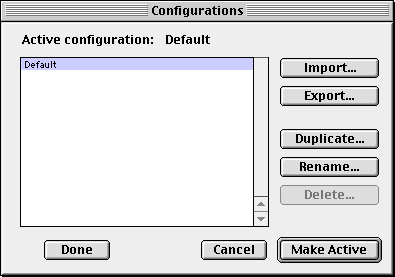
- In the Configurations window which appears, make sure that the "Default" configuration is highlighted, and press "Make Active." If you do not see a
"Default" configuration, use the "Duplicate..." button to duplicate an existing configuration, and name that new configuration "Default." When you are
finished, make sure that "Default" is selected, and press "Make Active."
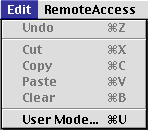
- Now you need to make sure everything is unlocked in Administration mode. Click on the "Edit" menu and select "User Mode..."
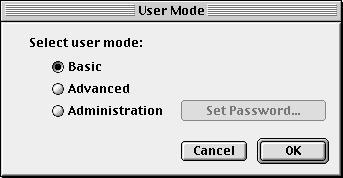
- In the window which appears, please mark the circle labeled "Administration." Please DO NOT set up a password. Press "OK" to return
to the Remote Access control panel window.
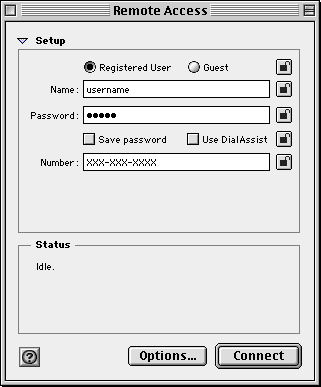
- Back in the Remote Access control panel, make sure that the padlock icons are unlocked. When you are through, back track through steps 4
and 5 above to get back to "basic" mode.
-
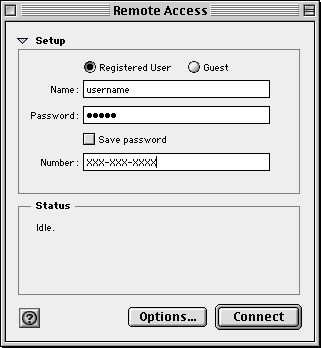
In the Remote Access control panel, please use the following settings:
- "Registered User" should be checked.
- "Name" should be your Sonic.net login name.
- "Password" should be your Sonic.net password.
- "Number" should be the Sonic.net dialup number you found using the Find Dialups tool.
-
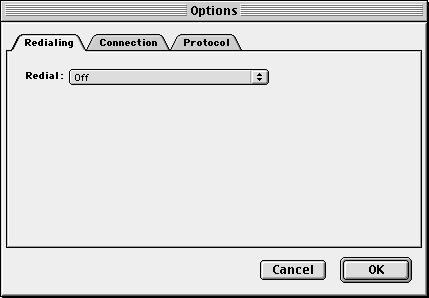
The options window has three sections.
- The "Redialing" tab has an option which is set to "off" by default.
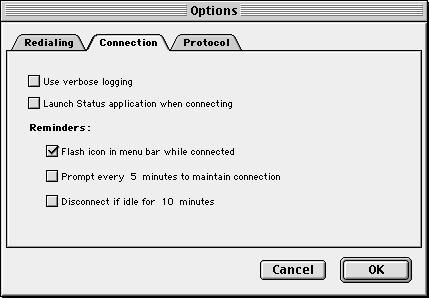
- The Connection Tab has several options which are just that: Optional. If you would like the computer to ask you every X minutes whether or
not you wish to maintain a connection, check the box ""Prompt every 5 minutes to maintain a connection." Sonic.net already disconnects any dialup
connection which has been idle for 15 minutes, so unless you want to shorten that amount of time, you do not need to check "Disconnect if idle
for 10 minutes."
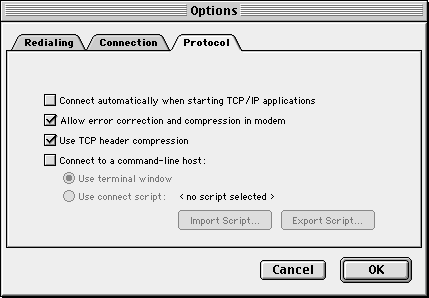
- The "Protocol" tab contains some more advanced connection options. The first three are important. If you would like your computer to dial up
automatically whenever you open your email program or web browser, check the box labeled "Connect Automatically when starting TCP/IP applications."
"Allow error correction and compression in modem," and "Use TCP header compression" are checked by default.
- The "Redialing" tab has an option which is set to "off" by default.
That's it, you're done! Press "Ok" out of the options window, and then close the Remote Access control panel, saving the changes you have made. If you would like more information about this feature of Mac OS 9, click on the question mark in the lower-left-hand-corner of the modem window. Back to the Macintosh setup guides.