
Mozilla 1.3/Netscape 7 Mail Settings in Mac OS X
Note: Newer versions of the Netscape browser, starting with version 8.0, do not support POP3 mail.
This tutorial will show you how to adjust the settings for an email account in Mozilla 1.3 or Netscape 7 for Mac OS X. The screenshots were taken from Mozilla 1.3, but if you are using Netscape 7, which is based on Mozilla, you should find this tutorial to be equally relevant.
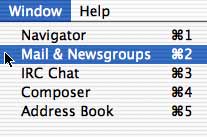
- Once you've opened Mozilla, click on the menu labeled "Window," and select "Mail & Newsgroups."
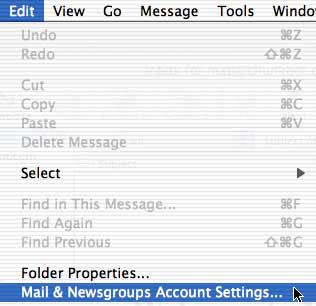
- Then, once the Mail & Newsgroups portiion of Mozilla opens, click on the menu labeled "Edit," and select "Mail & Newsgroups Account Settings."
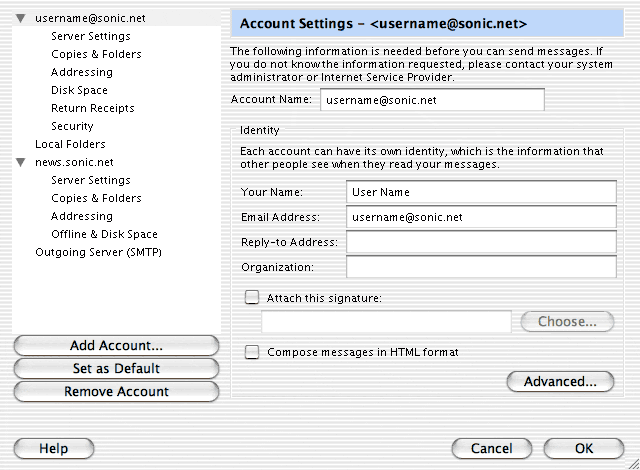
- In the main window for any particular group of Account Settings in Mozilla, there are a few required fields, and a few optional ones.
- "Account Name" defines how this group of settings will be listed by Mozilla.
- "Your Name" defines what name people see when you send them email. This will either appear next to, or in place of your email address.
- "Email Address" should be your Sonic.net email address or email alias.
- You only need "Reply-to Address" if it is different than your "Email Address."
- "Organization" is an extra field into which you can enter information.
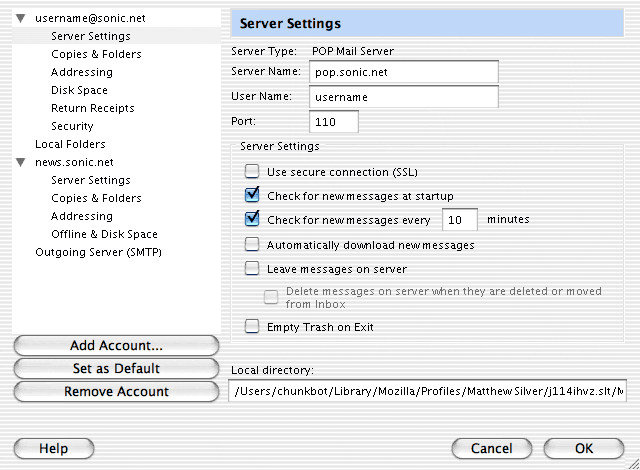
- Click on "Server Settings" below the account name in the list on the left.
- "Server Type" can only be defined when you are creating the account, and should read "POP Mail Server."
- "Server Name" should be "pop.sonic.net"
- "User Name" should be your Sonic.net username.
- "port" should be "110" unless you've checked "Use secure connection (SSL)" below, in which case the port will change automatically to what it should read for SSL (995).
- "Check for new messages at startup" means that Mozilla will check for new messages when you open up the Mail & Newsgroups portion of the program.
- "Check for new messages every [ ] minutes" is a box which will ask Mozilla to check for new messages automatically on a set schedule. Setting this lower than 10 minutes may constitute an abuse of Sonic.net system resources.
- "Automatically download new messages" will do exactly what it says.
- "Leave messages on server" will leave a copy of each message in the Sonic.net mail system, even though Mozilla has already downloaded a copy, and stored it on your hard drive. Checking this box could lead to an abuse of Sonic.net system resources.
- "Delete messages on server whenever they are deleted or moved from the Inbox" does exactly that.
- "Empty trash on Exit" will delete the trash folder in Mozilla whenever you quit the program.
- "Local Directory" is where these account settings and the mail for these account settings will be stored locally in Mac OS X. Unless you want to move this somewhere else for your own nefarious reasons, the default location should be fine.
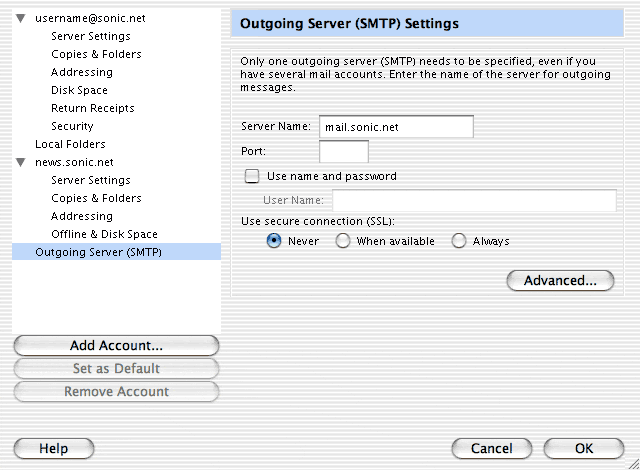
- Last, click on the section in the list to the left labeled "Outgoing Server (SMTP)."
- "Server Name" should be "mail.sonic.net"
- If you would like to use SMTP Authentication with Sonic.net, check the box labeled "Use name and password" and enter your username in the field provided.
- If you would like to use SSL to connect, please mark the circle labeled "When available."
That's it! Press "OK" and close the Account Settings window. You are ready to send and receive email with Mozilla 1.3/Netscape. If you'd like help with Mozilla or Netscape's other features, please take a look at the help menu, located at the top of the screen. Back to the Macintosh setup guides.