
Mozilla 1.3/Netscape 7 Mail Setup in Mac OS X
Note: Newer versions of the Netscape browser, starting with version 8.0, do not support POP3 mail.
This tutorial will show you how to set up an email account in Mozilla 1.3 or Netscape 7 for Mac OS X. The screenshots were taken from Mozilla 1.3, but if you are using Netscape 7, you should find this tutorial to be equally relevant.
If you're opening Netscape or Mozilla for the first time, you should be presented right away with the "New Account Setup" window. If you are, please skip to step four. If you are not, please start with step one.
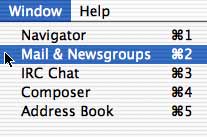
- Once you've opened Mozilla, click on the menu labeled "Window," and select "Mail & Newsgroups."
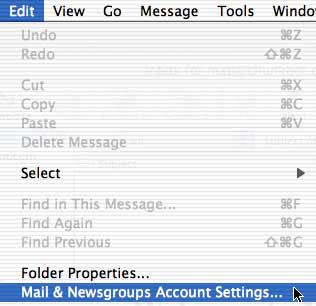
- Then, once the Mail & Newsgroups portiion of Mozilla opens, click on the menu labeled "Edit," and select "Mail & Newsgroups Account Settings."
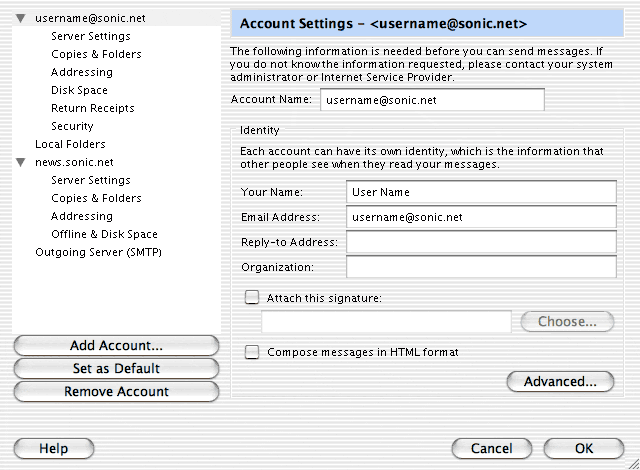
- Next, click on the button in the lower-left-hand side of the Account Settings window labeled "Add Account..."
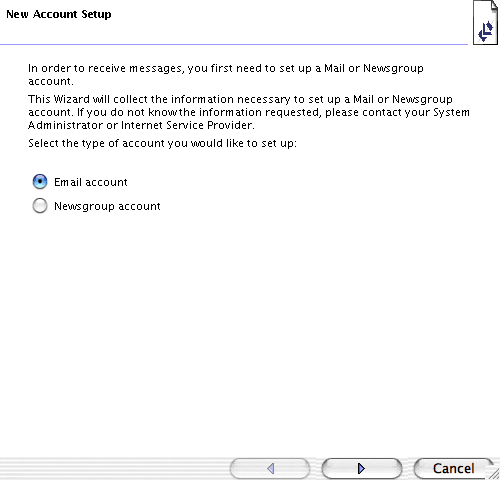
- The next six screens will help you set up the email account. Select which account type you'd like to set up at this time. For now, please select
"Email Account" and press the right-arrow at the bottom of the window to continue.
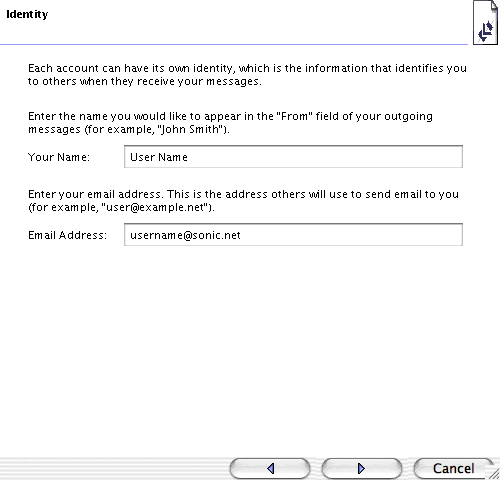
- In the "Identity" screen, go ahead and enter in your name in the "Your Name" field. You can put whatever you'd like here, but if you put something
strange, please keep in mind that this is the text that appears in place of your email address when you send email to people. Most people put their
first and last name, but you can put whatever you like. In the "Email Address" field, you should enter your Sonic.net email address. Press the
right-arrow at the bottom of the window to continue.
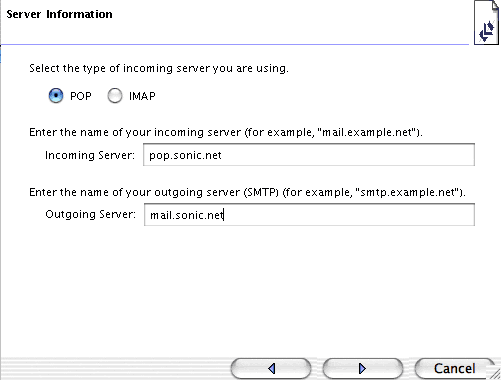
- In "Server Information," select "POP" and enter "pop.sonic.net" as the "Incoming Server" and "mail.sonic.net" as the "Outgoing Server." Press the
right-arrow at the bottom of the window to continue.
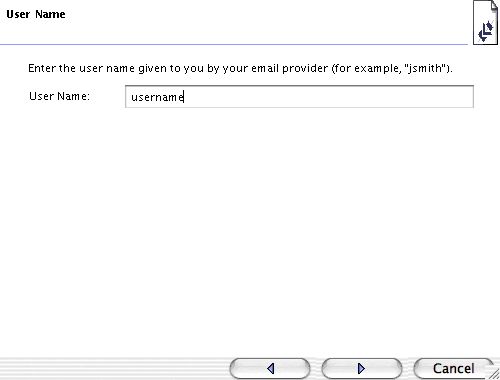
- The "User Name" section is asking for your Sonic.net username, which is the first part of your email address (if your email address is
username@sonic.net, then your username would be "username"). Enter it in the field provided. Press the right-arrow at the bottom of the window to
continue.
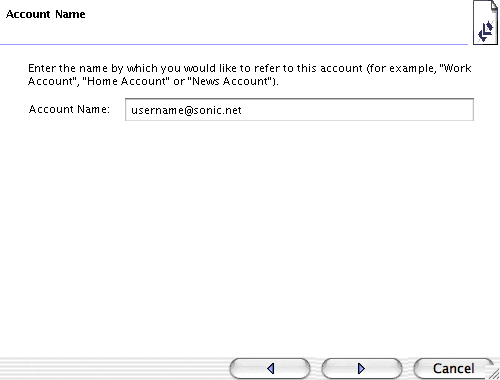
- The "Account Name" section is what defines how this account will be named inside Mozilla. This can also be entered however you like, but it is
usually best to keep the name of the account labeled so that it can be quickly identified as this particular group of Sonic.net account settings. Press
the right-arrow at the bottom of the window to continue.
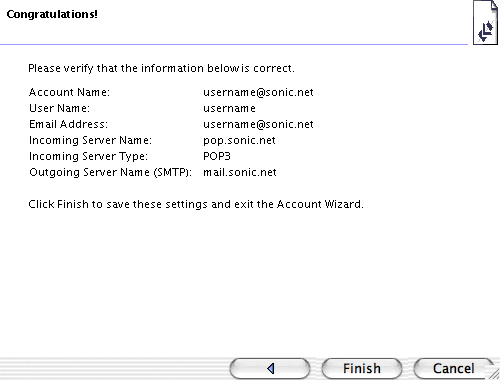
- In the "Congratulations!" screen, make sure that everything looks correct, and press "Finish." If there's anything incorrect, you can use the
left-arrow buttons to go back to the previous screens.
That's it! Press "OK" and close the Account Settings window. You are ready to send and receive email with Mozilla 1.3/Netscape. If you'd like more help with some of Mozilla or Netscape's other features, please take a look at the help menu, located at the top of the screen. Back to the Macintosh setup guides.