
Remove Mail From Server OS X 10.3
This tutorial will show you how to tell OS X's built in mail program, "Mail," to delete old messages from the mail server when checking for new mail. The version used to make this tutorial came with OS X 10.3.
-
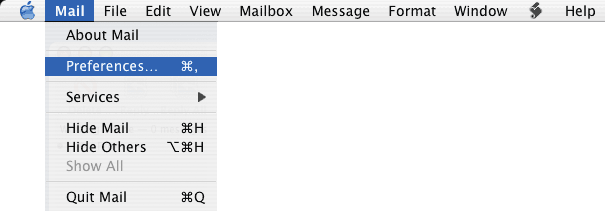
Once you've opened Mail, click on the menu labeled "Mail," and select "Preferences."
-
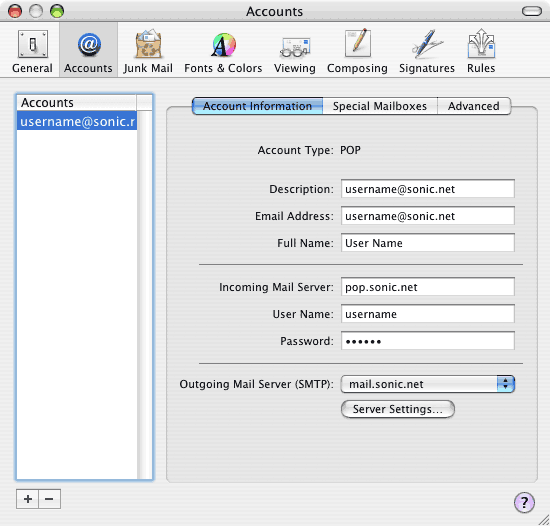
Next, you're presented with a window which contains three tabs, "Account Information, "Special Mailboxes," and "Advanced." Click on "Advanced."
-
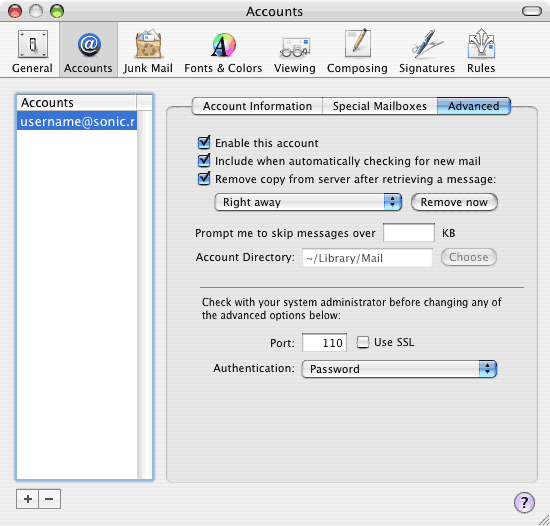
Adjust your Advanced settings accordingly:
- "Remove copy from server after retrieving a message" means that Mail will delete every message in your mailbox on Sonic.net's mail server after Mail downloads a copy to your computer. Make sure this box is checked.
- Please set the pull-down menu just below to "Right Away" instead of "One Week." This will allow you to help conserve mail system resources.
- If you've got a lot of mail on the mail system, and have now set the mail program to delete it, you can press the "Remove now" button to remove the stored mail which you've already read, from Sonic.net's mail system.
That's it! Press "OK" and close the account window. If you'd like help with Mail's other features, take a look at the help menu, located at the top of the screen. Back to the Macintosh setup guides.