
Mac OS X for DHCP
OS 10.1.5 shown
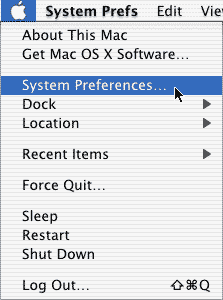
- To begin setting up your sonic.net connection, click on the Apple menu,
and select "System Preferences..."
- Once the System Preferences window loads, click on "Network" to load the
Network Preferences.

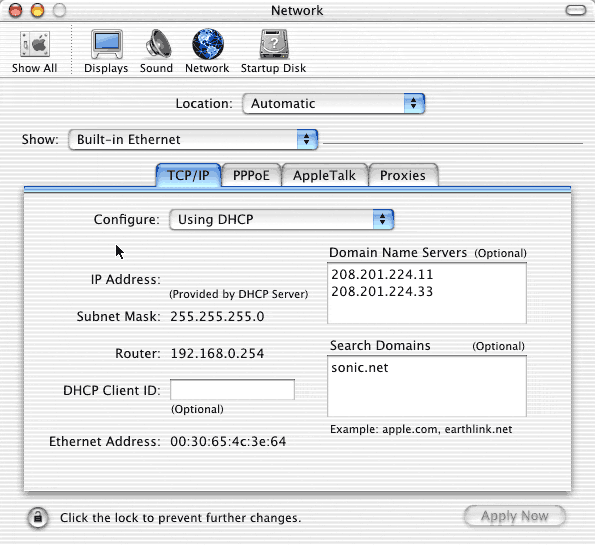
- In the Network Preferences pane, set location to "Automatic," and set
Show to
"Built-In Ethernet." Set Configure to "Using DHCP." The Domain Name Servers
are
208.201.224.11 and 208.201.224.33. The "Search Domain" should be
"sonic.net."
The DHCP client ID is not necessary. Except for the Domain Name Server
addresses, your
screen may look a little different from this image. Next, click on the PPPoE
tab.
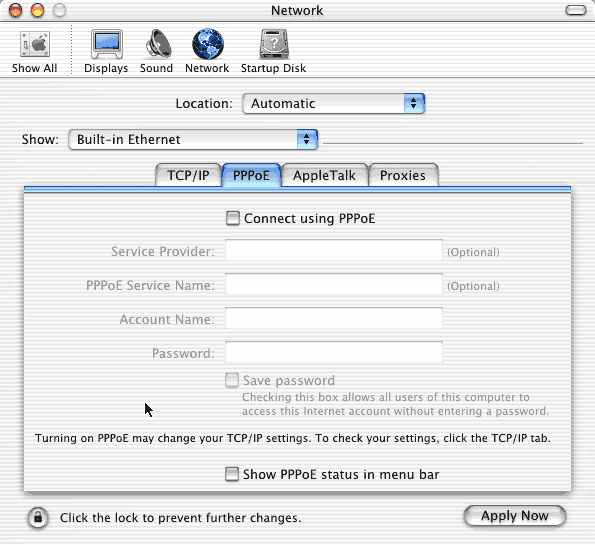
- In the PPPoE tab, nothing should be checked. Broadlink does not use PPP
over Ethernet.
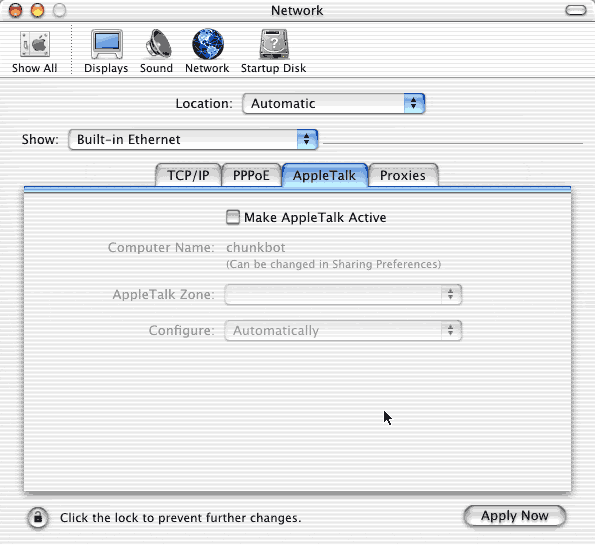
- Appletalk is not necessary to connect to Broadlink. Leave it off, or
turn it on, it does not matter. If you
regularly remotely connect to an Appletalk network, you should contact the
adminstrator of that network
for the appropriate settings.
- By default, the proxy settings tab is blank. Sonic.net does not require
proxy settings.
Leave these blank.
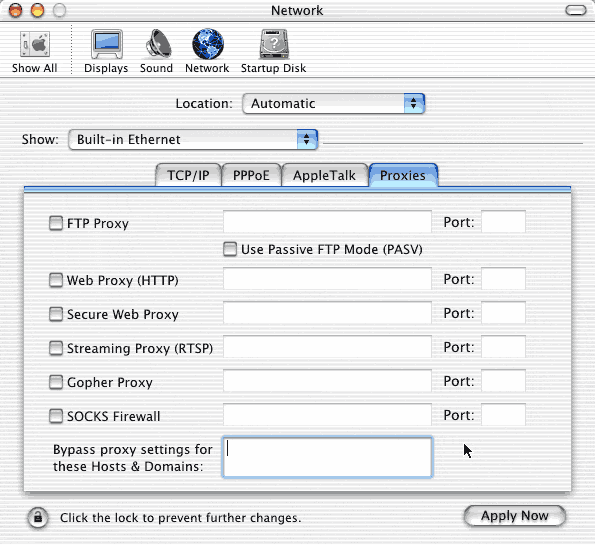
Once you've completed all the settings, click on "Apply Now" to enable the changes.