Netscape 6 General
Information and
Mail Settings
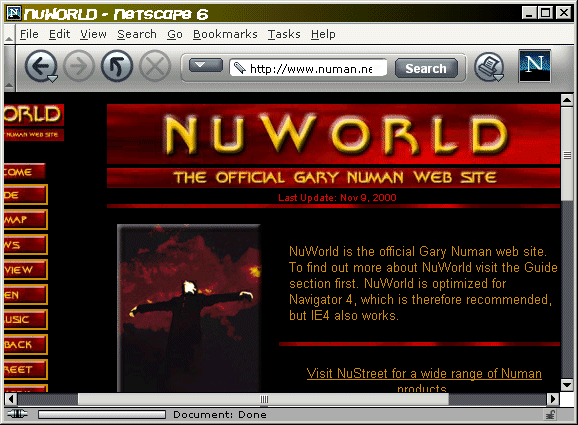
1. General layout shown.
Extra menu bars have
been turned off.
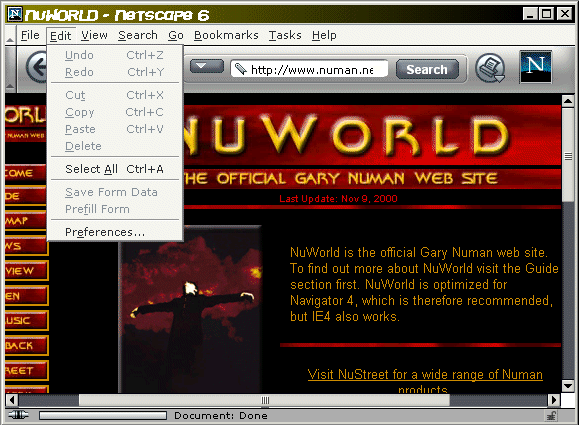
2. Click on Edit,
and the click on Preferences.
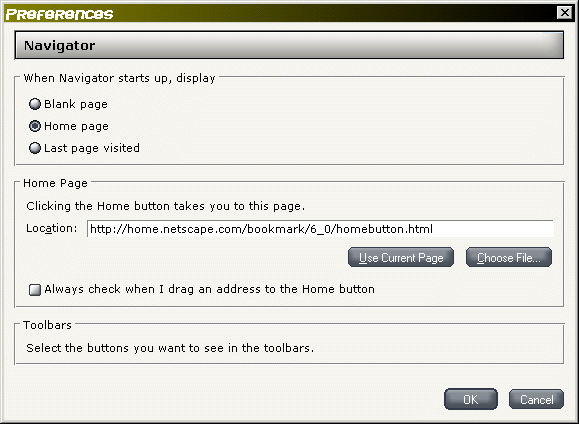
3. Unlike NS 4.x, the
general preferences only
include the information you see above and do not include mail
settings. To access the mail
settings, follow these steps:
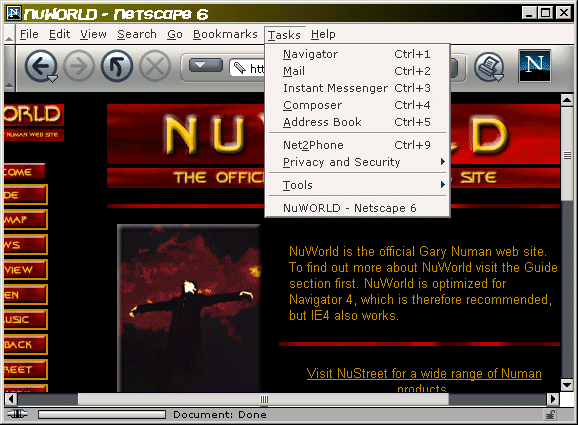
4. From the main Netscape
window, click Tasks
and then click on Mail.
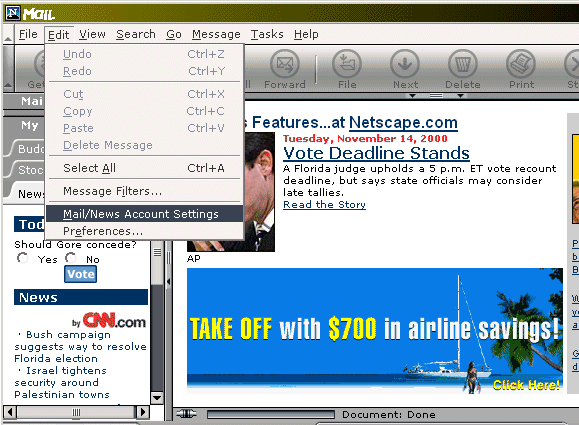
5. Once in the Mail
window, click on Edit and
then click on Mail/News Account Settings.
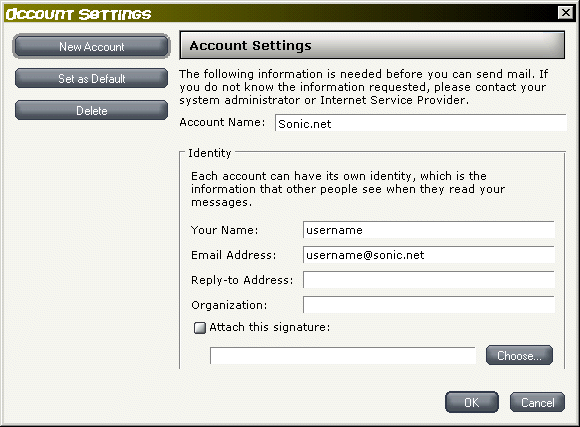
6. If a mail account
hasn't been created
already, click on New Account and then proceed to the next step. If
you want to edit the
properties for an existing account, you are out of luck. You will need
to create a new
account.
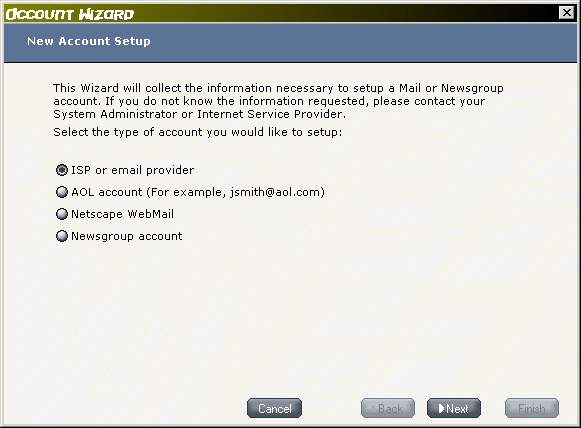
7. Choose ISP or email
provider, and click
Next.
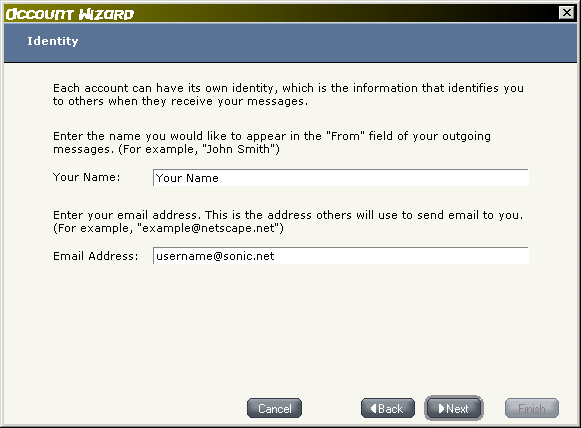
8. Type your real name and
your email address
in the respective fields. Click Next.
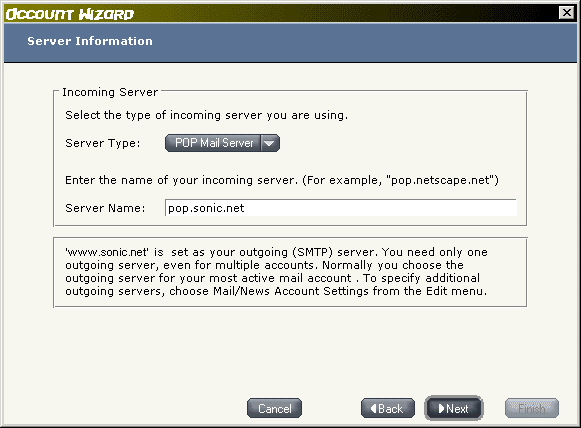
9. Type in pop.sonic.net
for the server name
if you are setting up a standard Sonic.net mail account.
Click Next.
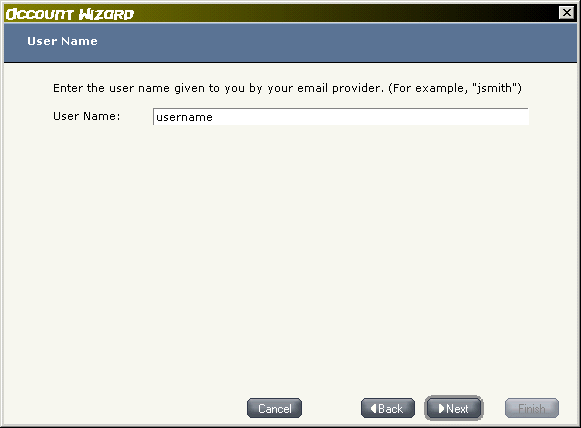
10. Type in your Sonic.net
username. Click Next.
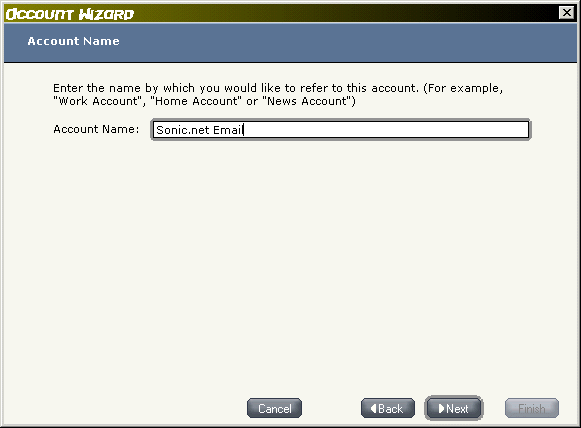
11. Change the name of the
account to
Sonic.net Email if you like. Click Next.
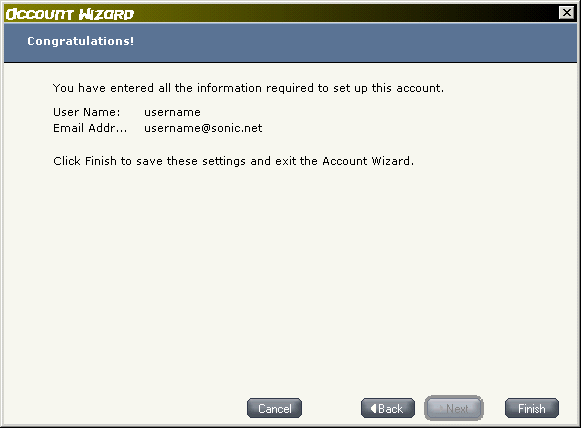
12. Click
Finish.
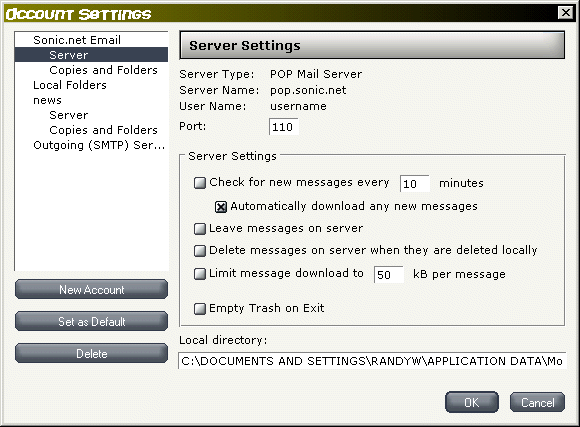
13. As you can see here,
the server settings
are locked into place and cannot be changed.
|