
Mozilla 1.7 Setup
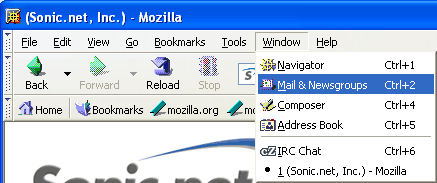
Once you have finished installing Mozilla 1.7 per the instructions at Mozilla.com, Open the Mail & News application by selecting "Windows" and clicking "Mail & Newsgroups." This will start the email setup wizard.
-
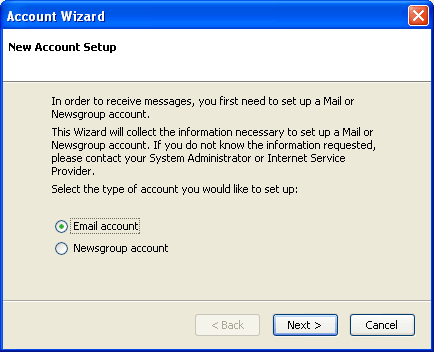
If this is the first time you have opened Mozilla's Mail & News interface, you will be prompted to create a new account. First, Mozilla will need to know what you are trying to set up. Select "Email Account" and click "Next."
-
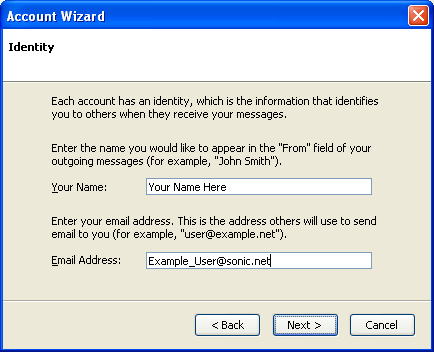
Enter your name and email address, then click "Next."
-
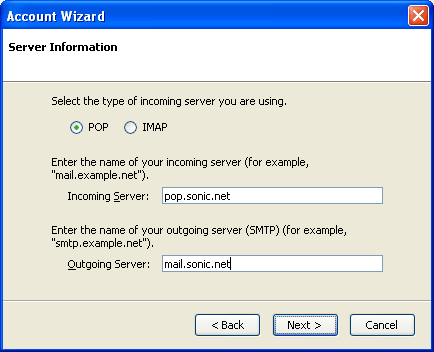
The incoming mail server is a POP server. Enter "pop.sonic.net" for the Incoming Server, and "mail.sonic.net" for the Outgoing Server. Click "Next" to continue.
-
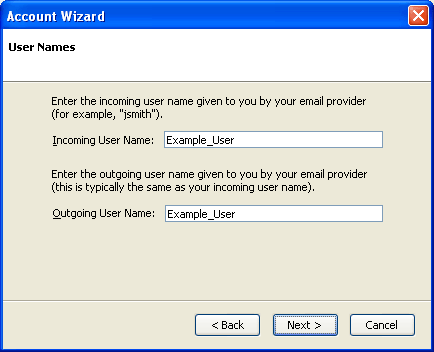
Enter your Sonic.net account name in the field labeled "User Name." This should be lowercase with no spaces.
-
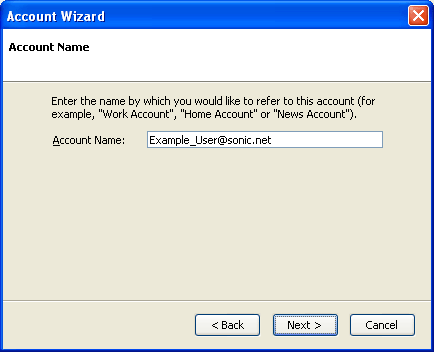
Click "Next" to continue.
-
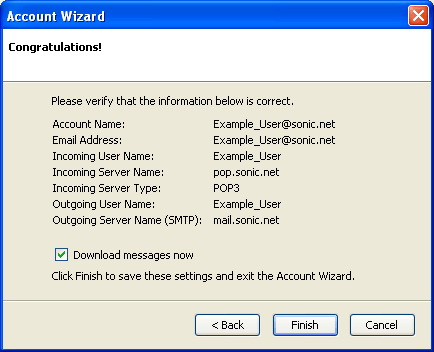
Mozilla will display your account information for confirmation. For your Sonic.net email to work, your "User Name," "Email Address," "Incoming Server Name," "Incoming Server Type," and "Outgoing Server Name (SMTP)" must be as specified above. Again note that your "User Name" is lowercase. Click "Finish" to complete the setup.
-
Sonic.net recommends the use of secure connections when popping or sending mail. To enable this capability, see the Mozilla 1.7 Settings page. Specifially you will want to enable SSL for incoming mail as shown here and both "user name and password" and SSL "When available" for outgoing mail, as shown here.