Appendix 4
Data Acquisition and Analysis
To prepare to measure and analyze data the following steps are recommended.
Install nanoVNA hardware and nanoVNA-qt software
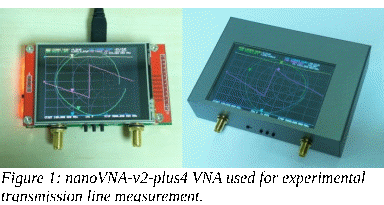
While many VNAs are suitable for these experiments, the NanoVNAV2 family of nanoVNAs are a particularly good value which make high quality measurement affordable. Most of these experiments have used the nanoVNA-v2-Plus4 which can be operated from LF to well into the microwave region while having continuous self-calibration as pictured in Figure 1.
Information and links about this VNA are available at
which provides information about where to obtain one. In addition, it has links to
which is used to interface to the VNA from a computer by way of a USB cable.
It is not required to use this particular VNA. Any modern VNA that is capable of performing a 1-path 2-port measurement and saving the results as a Touchstone .s2p file will suffice.
VNA Connection, Test Cables and Calibration
Because the lines being measured can be as much as 100 feet long, the test ports of the VNA need to be extended with test cables to reach and connect to whichever test fixture is in use. For the experiments shown, two approximately 50 foot lengths of LMR-240 cable fitted with male SMA connectors were used. In addition, two short semi-rigid .141” cables were used at the VNA as “connector savers” so that repeated connections at the VNA would only wear out or harm a cable and not the VNA SMA connectors. To connect at both ends of the 50 cables, SMA-SMA adapters are used.
A convention creating a female SMA connection on Port 1 and a male connection from VNA Port 2 was used, both the VNA location and at the ends of the long test cables. By using different gender connection types, the ‘thru’ calibration of the VNA is always insertable. That is, no additional calibration devices are required beyond the SOL devices used. The “(T)hru was simply a direct connection.
For these measurements quality 50 ohm calibration standards were available. Generally even the NanoVNA models are supplied with adequate (S)hort, (O)pen and (L)oad standards as shown in Figure 2. These give good results for LF – VHF measurements.
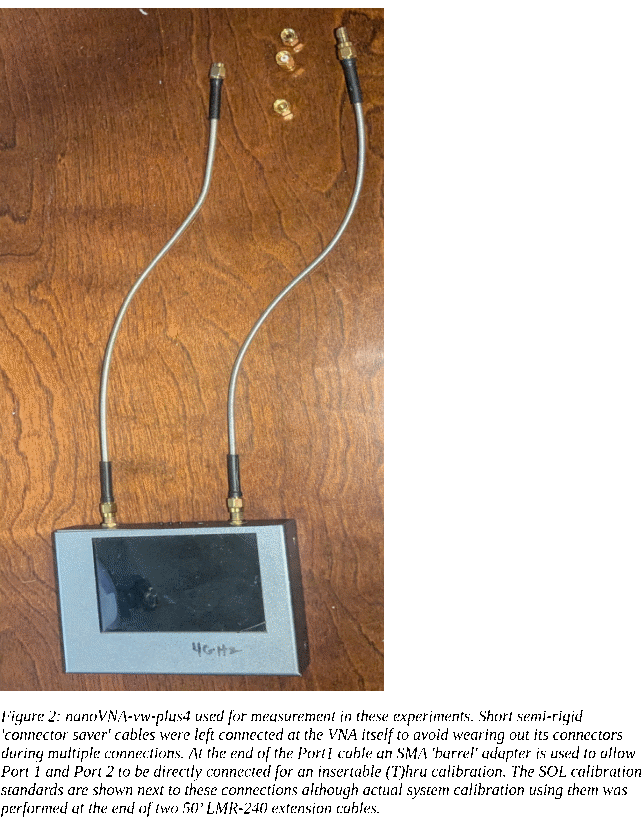
The 50’ test cables are insertable extensions of the connector saver connections at the VNA. SMA-SMA female adapters are used to accomplish this. In operation SMA connections are torqued to at least 9 inch-pounds and monitored to be sure they don’t loosen during use.
Install Python and a virtual environment
Creating a virtual environment for Python is a way to isolate your project’s dependencies so that different projects don’t conflict with each other. Here’s how to do it, step by step:
Make sure you have Python 3.6 or newer installed.
You can check this with:
python3 --versionor on Windows:
python --versionIf you don’t have Python, download it from python.org/downloads.
Open a terminal or command prompt and go to the directory where you want your project:
cd ~/my_projectRun:
python3 -m venv venvor on Windows:
python -m venv venv
This creates a new folder called venv
that contains the isolated Python environment.
(You can replace venv
with any name you prefer, e.g. .venv
or env.)
On macOS / Linux:
source venv/bin/activateOn Windows (PowerShell):
.\venv\Scripts\Activate.ps1On Windows (Command Prompt):
venv\Scripts\activateWhen activated, your terminal prompt will change to show the environment name, for example:
(venv) $
Once activated, you can install packages as usual, but they’ll be isolated to the virtual environment:
pip install numpy matplotlib scikit-rfYou can check installed packages:
pip listOr confirm Python is using your virtual environment:
which python(on macOS/Linux)
or
where python(on Windows)
To exit the virtual environment:
deactivateJupyter Notebook
With Python installed and operating within a virtual environment Jupyter notebook is a very useful context to analyze and render collected data. It offers an easy way to encapsulate, share and collaborate on experiments. It is freely available here
Experiment X is available for download which will immediately provide tools, present as “cells” within a notebook, which provide an easy starting point for replicating and expanding on transmission line experiments.
From
this point on, precede any work by entering the virtual environment
first.
This will provide an environmental “sandbox” to isolate the
project from any other installations that might exist on the
computer.
Once
the terminal command line shows the (venv) prefix indicating that the
environment is active, start Jupyter Notebook.
If
all work are done in this context you will have an isolated
environment to examine a previously created project located in its
own subdirectory as well as to create and perform your own
experiments.
All
of these may be shared and collaborated on with others.